
Note: This page contains affiliate links to OS Maps. I genuinely do believe they have the best maps app, so I’m happy to support and promote them. If you want to get great maps and support the Surrey Walks website at the same time (for no extra cost), you can purchase a subscription through the ads on this page.
All the new routes on the Surrey Walks website have a quick button to open the walk in OS Maps, so you won’t need to import the gpx. However, if you want to import them as a route you can then save, read on to find out how.

There are plenty of apps you can use for GPX routes, but I recommend OS Maps. Not only are they the most detailed maps you can find, but I believe Ordinance Survey is a company doing incredible work to support and enhance the experience of walkers and I like to support them.
You can download the app for free, but for a relatively modest subscription, you get access to the best possible maps on any device. It’s well worth doing. The monthly subscription isn’t bad value, but the yearly subscription works out significantly better.
Once you’ve got an OS Maps account and downloaded the OS Maps app, it’s simple to use the GPX files on the Surrey Walks website.
1. Download a GPX file from Surrey Walks
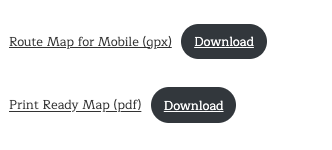
On all our walking route, you’ll see some buttons like the ones below. Use them to download the GPX files.
Once downloaded, open the file. You’ll be prompted to select an App to open it with. Select OS Maps. The process is the same for both iPhone and Android but it might look slightly different. If you select ‘Always’ instead of ‘Just Once’ then you’ll never have to choose again and it will just open automatically.

2. Save the Route
Once the route opens in the OS Maps, you’ll need to click Import GPX.

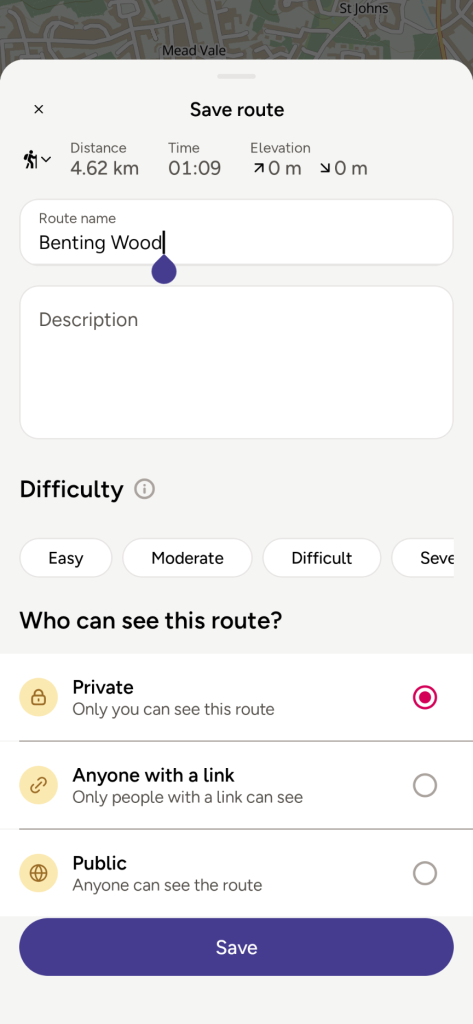
Now the route will be loaded into OS Maps. Click Save in the bottom right corner to save the Route.

3. Get Walking!
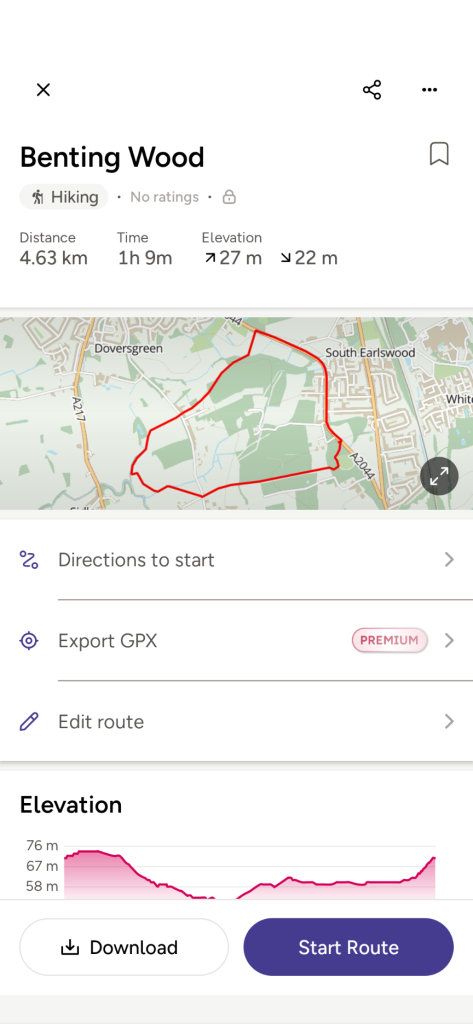
Once the route is saved, you’ll be able to easily find it on all your devices with OS Maps. From there, you can download the map for offline use and follow along on your walk.
More from OS Maps
Personalised Maps
Historical Maps
Paper Maps